
How to Automate Image Optimization in Blog Posts (The Easy Way)
We all know images make blog posts come alive, but they can also slow down your site if they’re not optimized. Nobody wants to manually compress every single image before uploading it, right? That’s where automation comes in. When you automate image optimization in your blog posts, you save time, improve site speed, and boost your SEO without lifting a finger after the initial setup.
At Hiland SEO, we help businesses get more visibility online by making smart moves that work. One of those moves? Making sure your images aren’t holding you back. Let’s walk through exactly how you can automate image optimization so your blog loads fast, ranks better, and keeps visitors happy.
Why Automate Image Optimization for Blog Posts
Images make up a huge chunk of your website’s total weight—we’re talking around 64% on average. When you upload a photo straight from your camera or a stock site, it might be 4MB or larger. That’s massive in web terms. Your visitors aren’t going to wait around for images to load, especially on mobile devices. Studies show that half of users expect websites to load in under 2 seconds, and 40% will leave if it takes more than 3 seconds. You can’t afford to lose that traffic.
But here’s the thing: manually optimizing images is a pain. You’d have to resize, compress, rename, and convert every single image before uploading. For one blog post, maybe that’s doable. But if you’re publishing regularly? That’s hours of work every week. Automating this process means your images get optimized the moment you upload them, keeping your site fast and your workflow smooth. Plus, search engines like Google factor in page speed when ranking sites, so optimized images directly help your SEO. At Hiland SEO, we use AI-powered tools to help clients streamline these kinds of tasks and see real results in their traffic and rankings.
Choose the Right Image Optimization Tools and Plugins
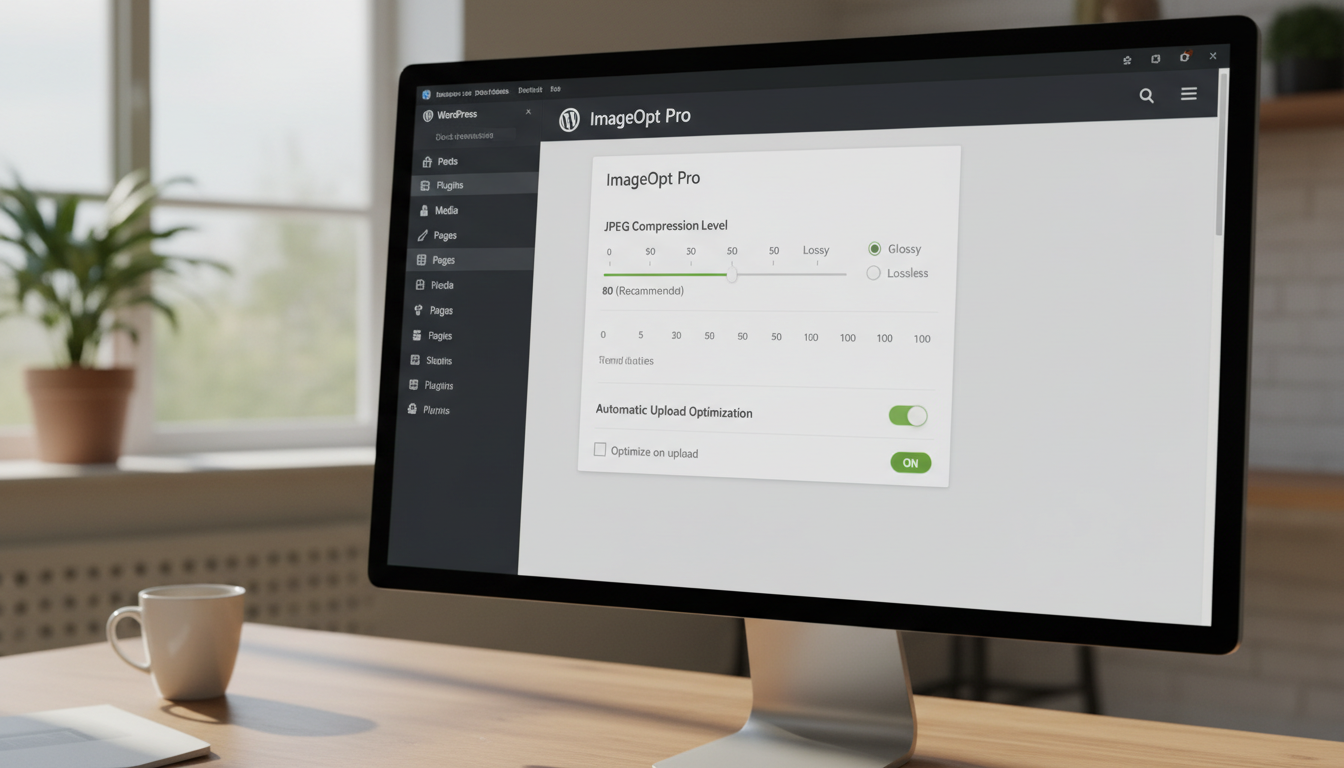
The first step to automating image optimization is picking the right tool for your platform. If you’re running a WordPress site (and most bloggers are), plugins are your best friend. They handle everything automatically in the background. For other platforms or custom setups, APIs and cloud-based services work just as well.
WordPress Plugins: These are the easiest way to get started. Once you install and configure a plugin, it takes care of new uploads automatically and can even bulk-optimize your existing images. Popular options include ShortPixel Image Optimizer, which offers automatic compression, bulk optimization, and WebP conversion. EWWW Image Optimizer is another solid choice that lets you optimize images using tools on your own server or offload the process to their cloud service. Imagify provides smart compression that balances quality and file size without you having to mess with settings. Smush and Optimole are also widely used—Optimole is especially cool because it delivers images in real-time based on each visitor’s device and screen size.
Cloud-Based Services and APIs: If you’re not on WordPress or want more control over the optimization workflow, services like TinyPNG API, Cloudinary, and Kraken.io let you automate image optimization through their APIs. You can integrate these into your content management system or build scripts that process images before they even hit your server. The TinyPNG API, for example, supports PNG, JPEG, and WebP formats and offers a free plan that covers up to 500 images per month, which works great for smaller blogs.
Desktop and Batch Tools: For those who prefer to optimize images locally before uploading, tools like ImageMagick, FastStone Photo Resizer, and XnConvert can batch-process images. You set up your preferences once—like resizing to 1,200px wide and converting to WebP—and then drag and drop entire folders. These tools are perfect for photographers or anyone dealing with large batches of high-res images. They integrate well into automated workflows and CI/CD pipelines if you’re running a more technical setup.
Set Up Automatic Image Compression on Upload
Once you’ve chosen your tool, the next step is configuring automatic compression. This is where the magic happens—every time you upload an image to your blog, it gets optimized automatically without you having to remember or do anything extra.
Most WordPress plugins make this incredibly simple. After you install a plugin like ShortPixel or EWWW, you’ll go through a quick setup where you choose your compression level. You’ll typically see options like lossless, lossy, and glossy (or ultra). Lossless keeps all the original data but doesn’t compress as much—great for product photos or portfolios where quality is key. Lossy removes unnecessary data and compresses more aggressively, which is perfect for blog images and general web use. Most people find that lossy compression at 80-85% quality gives them the best balance—images still look great, but the file sizes drop dramatically.
Once that’s set, the plugin will automatically optimize every new image you upload. Some plugins also let you set maximum dimensions, so if you upload a 4000x4000px image, it’ll automatically resize it to something more reasonable like 1,200px or 1,500px wide. This prevents huge files from ever making it onto your site. Many plugins also offer bulk optimization features, so you can optimize all your existing images in one go. This is a lifesaver if you’ve been blogging for a while and have hundreds or thousands of old, unoptimized images sitting on your server.
Convert Images to Next-Gen Formats Like WebP and AVIF
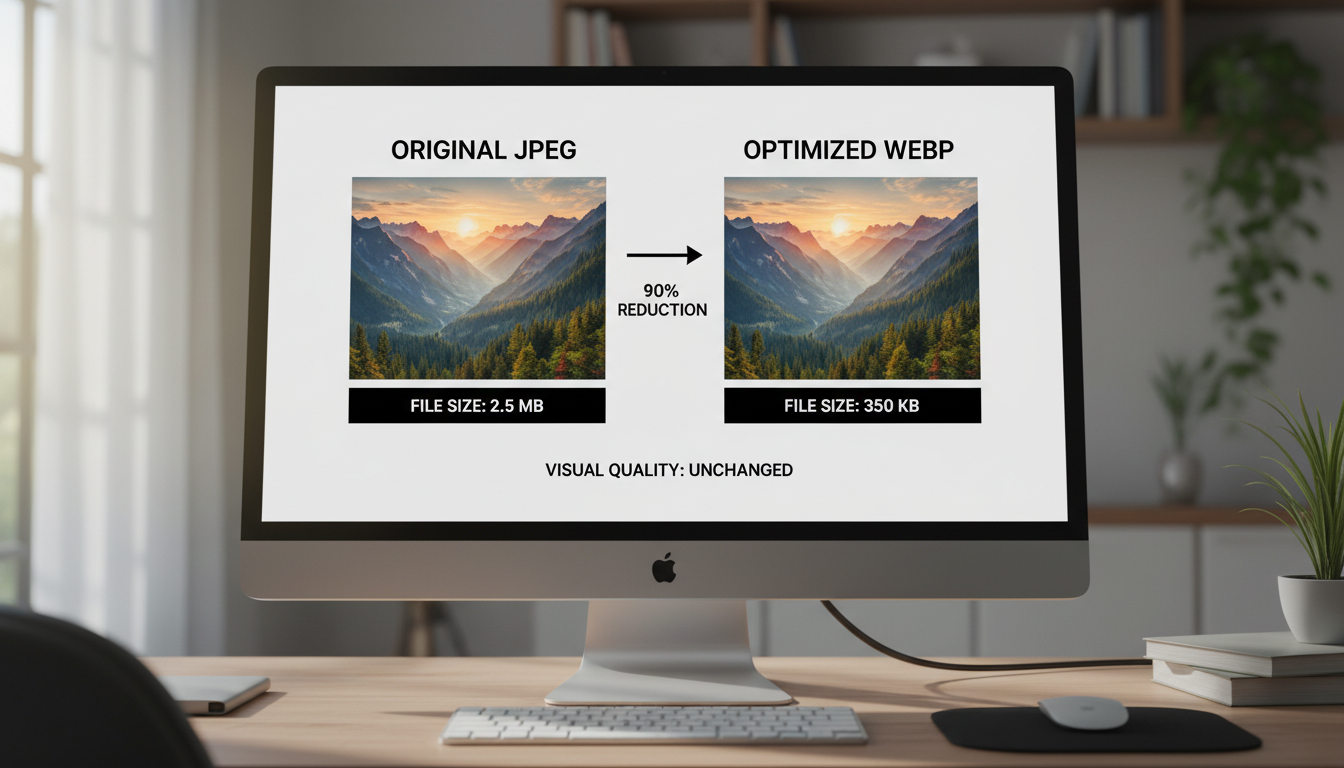
File format matters a lot when it comes to image optimization. Traditional formats like JPEG and PNG are fine, but next-gen formats like WebP and AVIF can reduce file sizes by 25-50% or more without any noticeable quality loss. The best part? Most modern browsers support these formats, and the ones that don’t can fall back to JPEG or PNG automatically.
Many image optimization plugins now include automatic conversion to WebP or AVIF. When you enable this feature, the plugin creates a WebP or AVIF version of each image alongside the original. Then, when someone visits your site, the plugin serves the WebP/AVIF version if their browser supports it, and the original format if not. This happens automatically with no extra work from you. Plugins like ShortPixel, Imagify, and EWWW all handle this conversion seamlessly.
If you’re using a cloud-based service like Cloudinary, it can detect the visitor’s browser and serve the most optimized format in real-time. This kind of smart image delivery is especially powerful if you have a global audience or a lot of mobile traffic, because it ensures everyone gets the fastest possible experience. You can also set up services like Thumbor (an open-source project you host yourself) or use a CDN that automatically converts and serves images in the best format.
Implement Lazy Loading for Faster Page Speed
Lazy loading is another automation technique that can dramatically improve your site’s speed. Instead of loading all the images on a page at once, lazy loading only loads images as the user scrolls down and they come into view. This means your initial page load is much faster, which is great for user experience and SEO.
Most image optimization plugins include built-in lazy loading. You just flip a switch in the settings, and it’s done. The plugin will replace your image tags with a placeholder (often a tiny 1×1 pixel transparent GIF) and load the actual image only when it enters the viewport. Modern browsers also support native lazy loading with a simple loading="lazy" attribute, so some plugins will use that method instead, which is even more efficient.
Lazy loading is especially helpful for long blog posts with lots of images, because visitors don’t have to wait for images at the bottom of the page to load before they can start reading at the top. It also saves bandwidth, which matters for visitors on mobile data plans. Just make sure your lazy loading implementation doesn’t hide images from search engines—good plugins handle this by including a noscript tag with the real image, so Google can still see and index them.
Resize Images to Optimal Dimensions Before Upload
Even with compression and conversion, image dimensions matter. If you upload a 4000x3000px image but your blog only displays it at 800x600px, all those extra pixels are just wasted data. The browser still has to download the full-size image, even though it’s displaying it smaller. That slows things down unnecessarily.
Some plugins can automatically resize images on upload to a maximum width or height that you specify. For example, you might set it so any image wider than 1,500px gets automatically resized to 1,500px. This ensures you never accidentally upload massive images. If you’re using desktop tools like FastStone Photo Resizer or Photoshop, you can batch-resize images before uploading. Many bloggers set up a standard workflow where they resize all images to 1,200px wide (a common blog width) before uploading them.
For more advanced setups, you can create responsive images that serve different sizes based on the visitor’s screen. This is done using the srcset attribute in HTML, and many modern WordPress themes and plugins handle this automatically. The idea is that mobile users get a smaller image file, while desktop users with big screens get a larger one. This adaptive approach ensures the best possible experience for everyone.
Automate Image Optimization in Your Workflow
If you want to take automation to the next level, you can build it directly into your content creation workflow. This is especially useful if you’re part of a team or if you use a static site generator or headless CMS.
For WordPress users, automation is mostly about setting up the right plugin and forgetting about it. But you can go further by setting up scheduled optimization tasks. Some plugins let you run optimization via CRON jobs or WP-CLI commands, which is perfect for large media libraries. You can also use pre-commit hooks with tools like Husky if you’re managing your site with Git, so images get optimized every time you push new code.
If you’re using a static site generator like Eleventy, Gatsby, or Hugo, you can build image optimization directly into your build process. For example, you might use a package like Sharp (a Node.js image processing library) to automatically resize, compress, and convert images during the build. This way, optimized images are generated every time you build your site, and you never have to think about it. You can also use GitHub Actions or other CI/CD tools to automate this process in the cloud.
For teams working with external writers or content creators, setting up a shared Dropbox or Google Drive folder with automated processing can work well. Images dropped into the folder get automatically optimized via a script before they’re uploaded to the site. The key is to remove the manual step so optimization always happens, no matter who’s creating the content.
Test Your Image Optimization and Monitor Performance
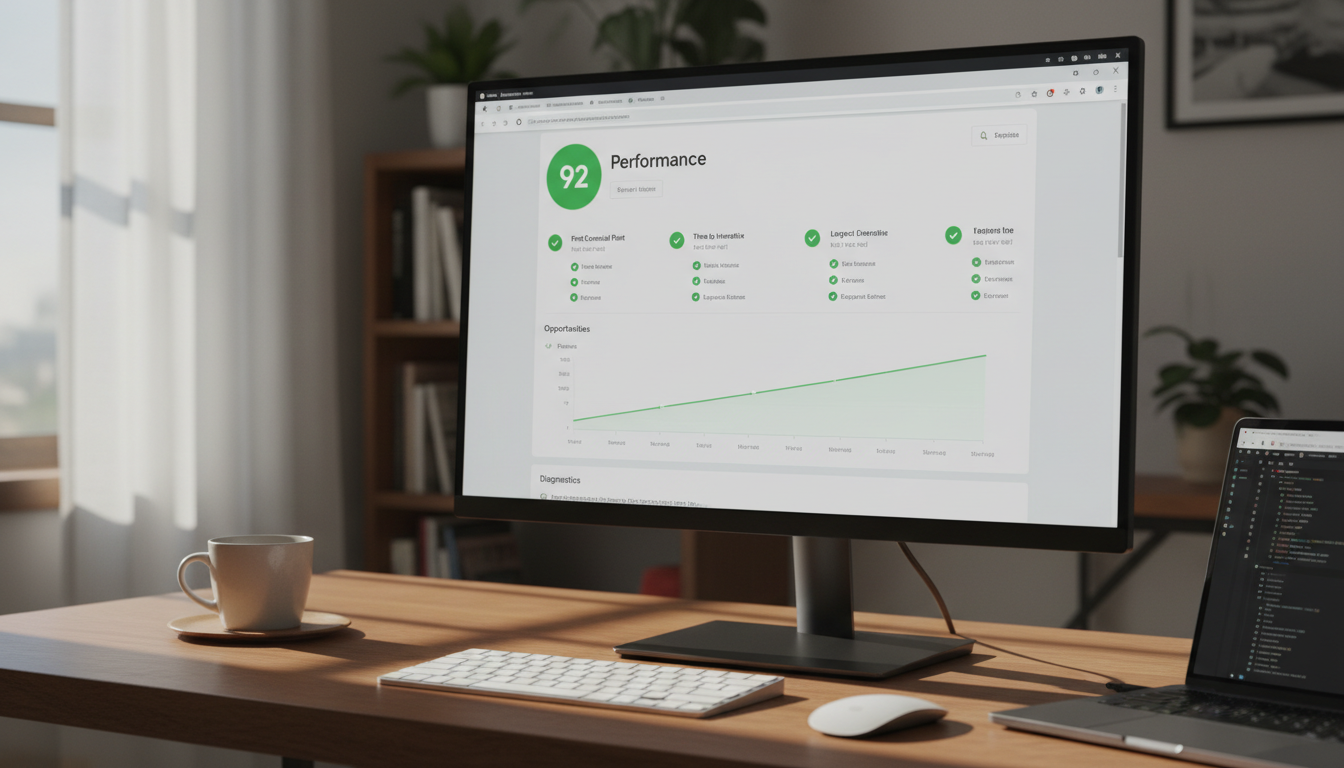
Automation is great, but you should still check that it’s working properly. Run your blog through tools like Google PageSpeed Insights, GTmetrix, or Pingdom to see how your images are performing. These tools will tell you if images are still too large, if they’re in the wrong format, or if they’re not lazy loading correctly.
Look for warnings like “Properly size images” or “Serve images in next-gen formats.” If you see these, it means your automation setup needs tweaking. Maybe your plugin isn’t resizing images aggressively enough, or maybe WebP conversion isn’t enabled. Most plugins also give you stats on how much space you’ve saved and how many images have been optimized, which is helpful for tracking your progress.
You should also check your site’s actual load time before and after implementing image optimization. It’s not unusual to see 50% or more improvement in load times just from optimizing images. That kind of speed boost directly impacts your bounce rate, time on site, and ultimately your search rankings. At Hiland SEO, we’ve seen clients improve their rankings significantly just by fixing their image optimization and other technical SEO issues.
Frequently Asked Questions
What’s the best free plugin to automate image optimization in WordPress?
EWWW Image Optimizer and reSmush.it are both excellent free options that automatically optimize images on upload. EWWW offers unlimited optimization using your server’s resources, while reSmush.it uses a free cloud service and has optimized over 25 billion images.
Does automating image optimization hurt image quality?
Not if you choose the right settings. Lossy compression at 80-85% quality removes unnecessary data without any visible quality loss. You can always test different compression levels to find the sweet spot for your images.
Can I automate image optimization for images already on my site?
Yes! Most WordPress plugins offer bulk optimization features that let you optimize all existing images with one click. Cloud services and desktop tools can also batch-process folders of images.
Do next-gen formats like WebP work on all browsers?
WebP is supported by all modern browsers (Chrome, Firefox, Edge, Safari). Most plugins automatically serve WebP to supported browsers and fall back to JPEG or PNG for older browsers, so you’re covered either way.
Will automated image optimization improve my SEO rankings?
Absolutely. Page speed is a ranking factor, and images are often the biggest contributor to slow load times. Faster sites rank better, get lower bounce rates, and provide a better user experience, all of which help your SEO.
Image Prompts: